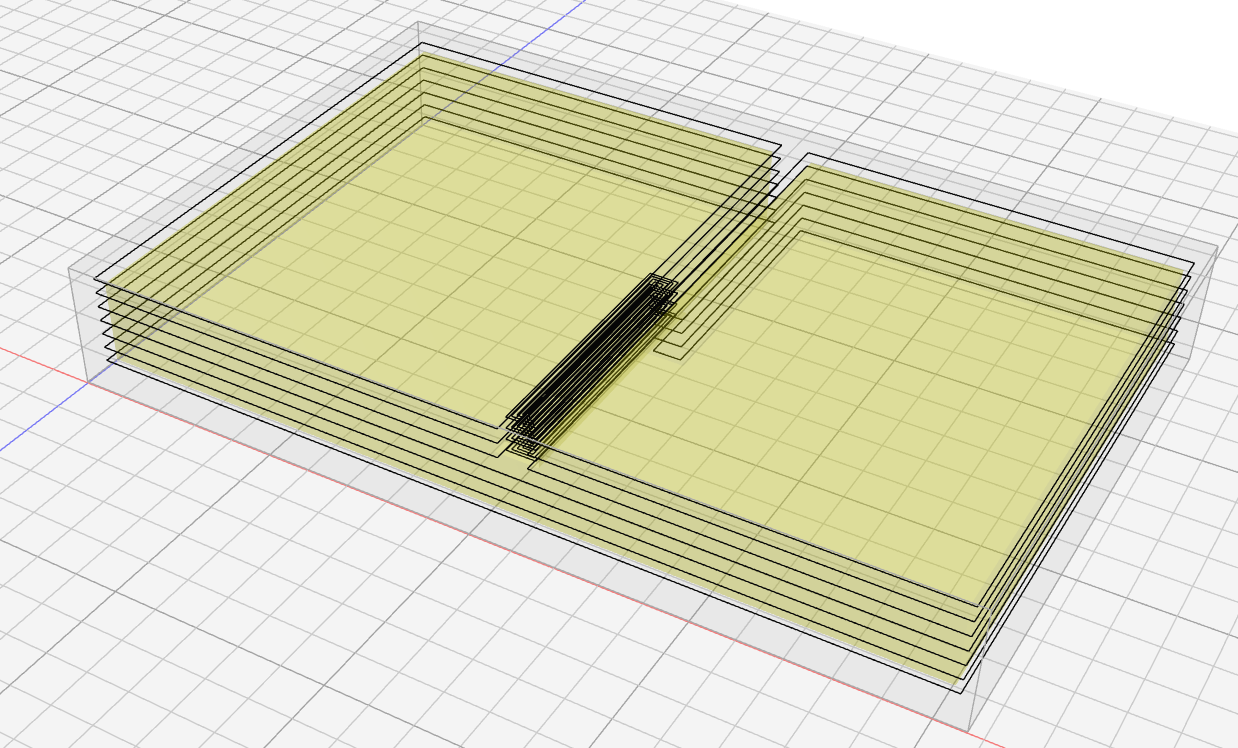
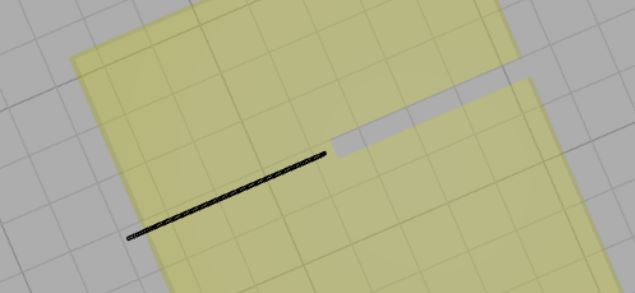
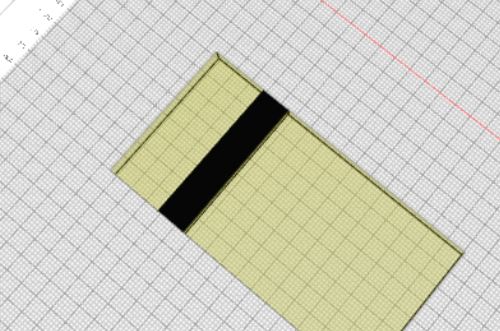
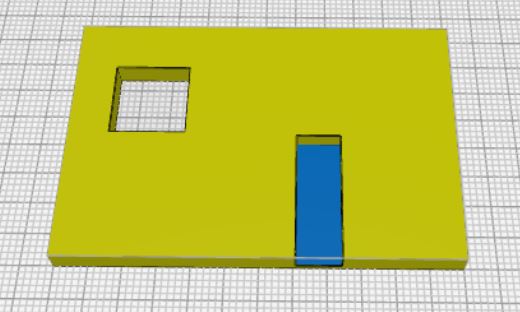
Hello, I am new to Kirimoto and new to CNC I have seen and studied several videos, and I can’t realize this, in my opinion simple task with Kirimoto. I think I missed something.
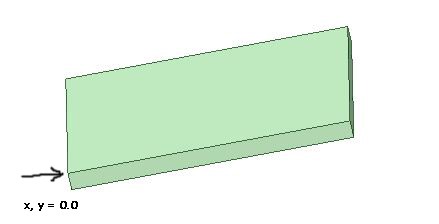
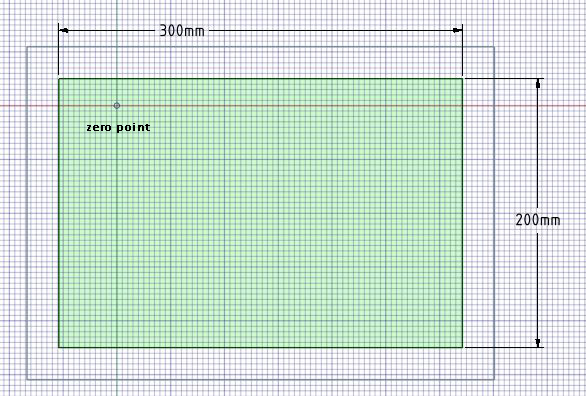
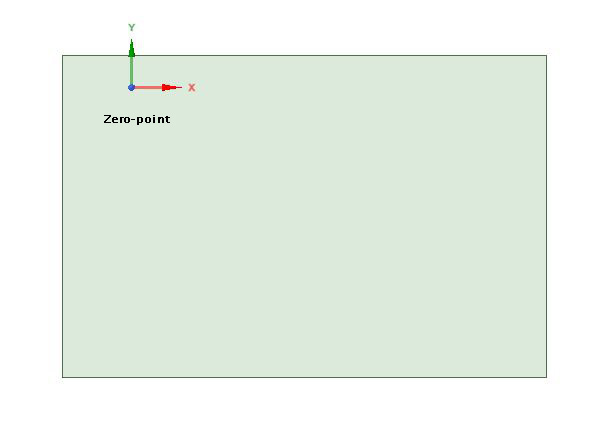
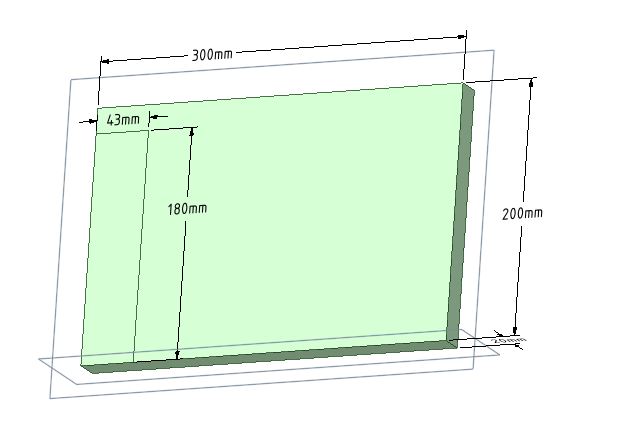
I have a piece of plywood 18 mm thick, 350 mm wide, and 500 mm long
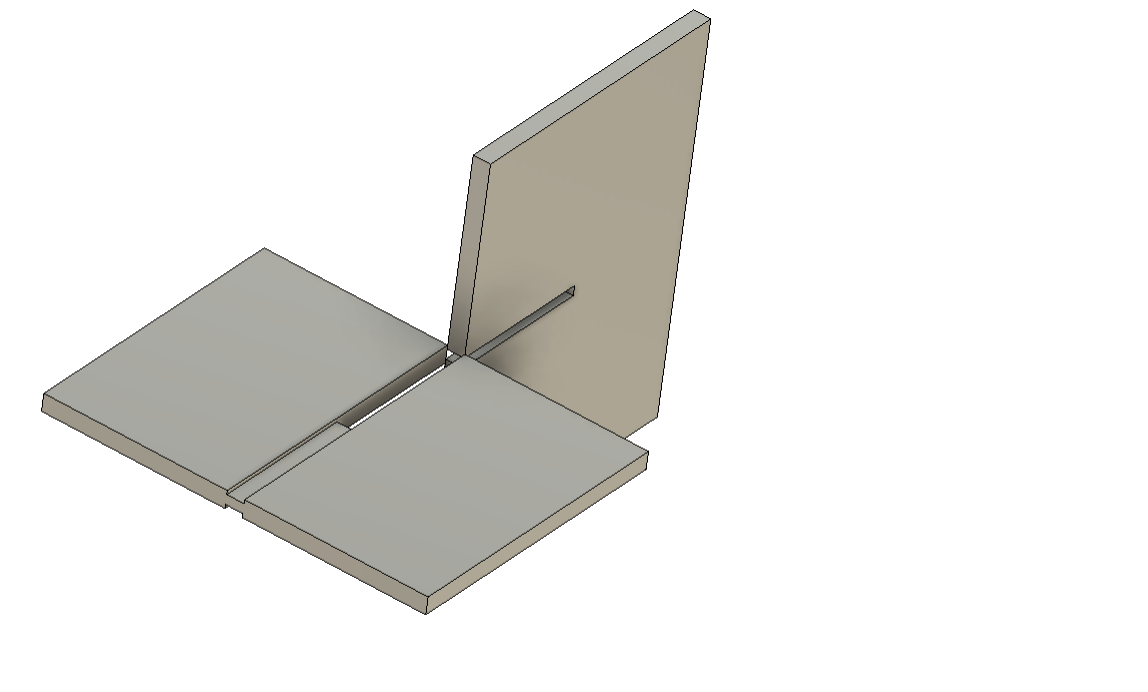
and I want to mill a 18mm wide and 4mm deep groove in this piece of wood
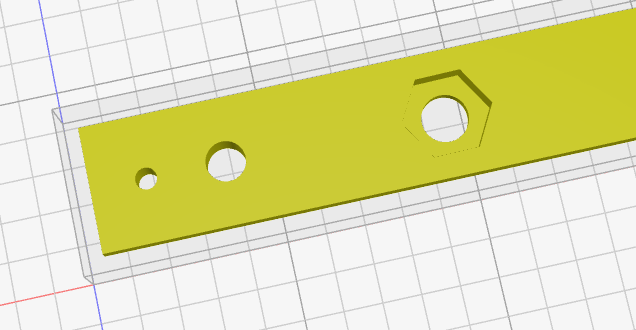
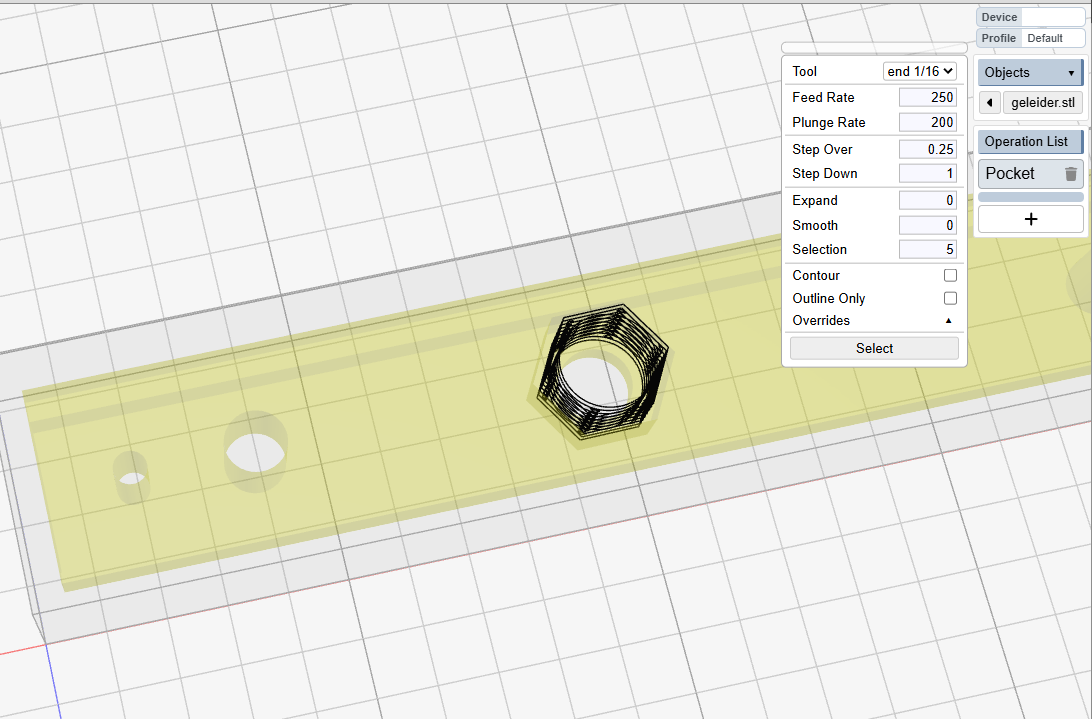
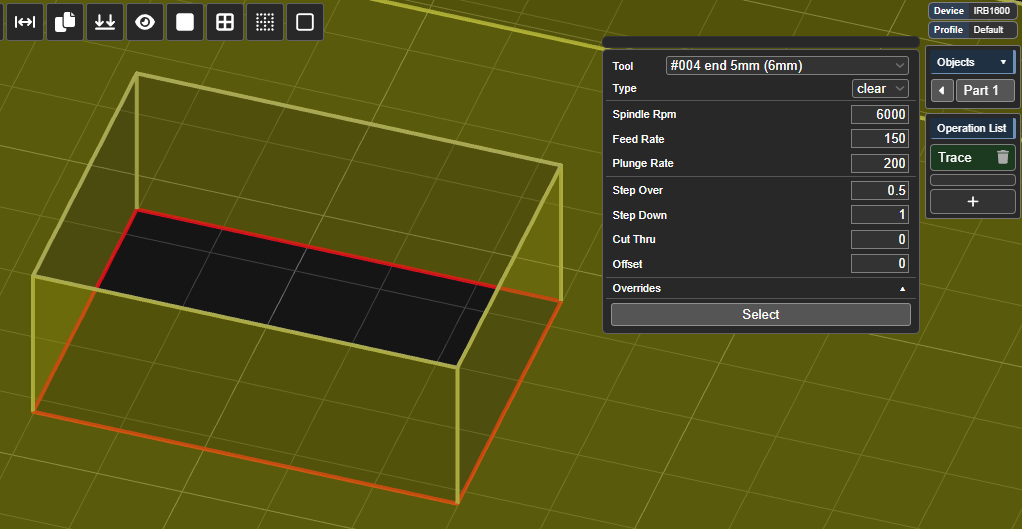
I imported the model into Kirimoto, but I cannot select the desired piece to mill the groove. It always wants to mill the whole object.
So how can I point the program to that particular piece?
I don’t know what your model looks like, but if you’re modeled the stock it might not behave the way you expect unless you change the stock settings in K:M.
You’ll also probably want to use the pocket operation, but this also depends on what your model looks like.
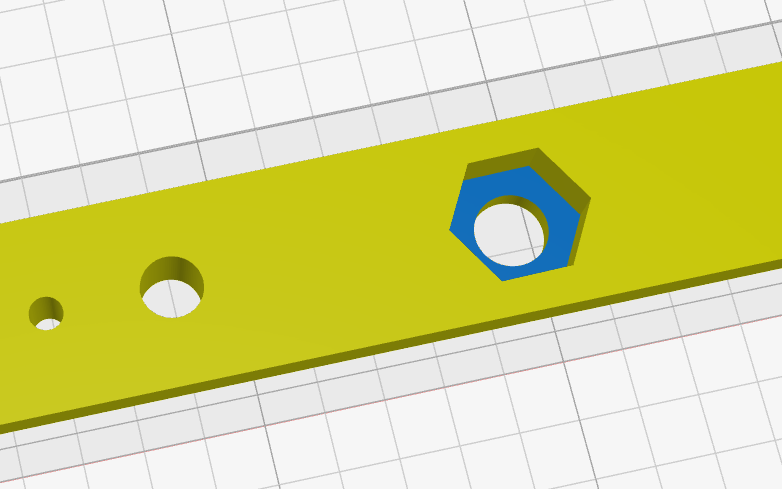
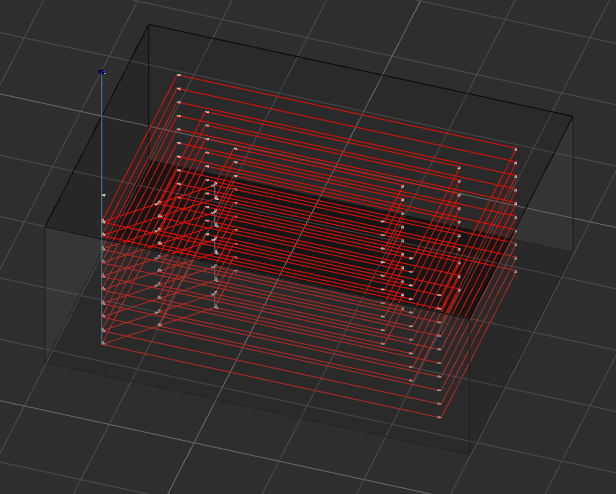
You probably want the trace operation, set to clear mode. Select each edge at the bottom of the hole. Make sure you’re using a bit that reaches through the stock.
Also make sure to set a step down value so that it doesn’t plunge to the bottom on the first pass unless that’s what you want.
If the stock is being held with clamps around the sides and not glued to the worksurface I would make sure the last layer is being cut from the middle out, since it alternates when using a step down value. Otherwise it might cut the piece loose and then try to cut inwards which might damage something.
If you can’t get the final layer to be cut from the middle I’d set the cut thru value to a negative value, or use the Z bottom override. This will cause it to stop when there’s that many workspace units left at the bottom. Then I’d use another trace operation set to follow with offset inside to cut through the last layer only around the edge.